Mail Task
The Mail Task simply allows you to send a mail template document to various members. It can be dynamic group, simple group or a member directly.
Note
This task must be used with FusionDirectory Orchestrator to function properly.
Task Setup
Creating the Task
Open the Tasks section in FusionDirectory.
Define the task’s schedule and repetition interval.
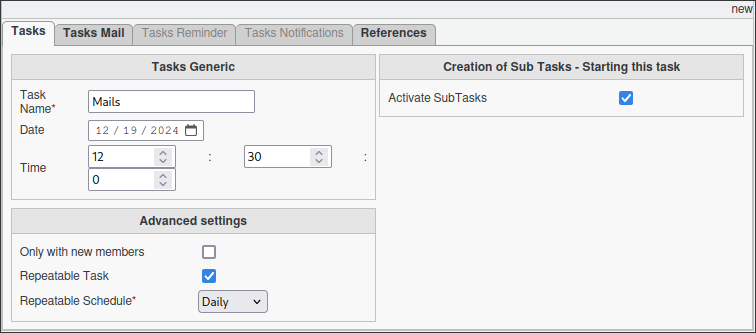
Configuring Mail Task
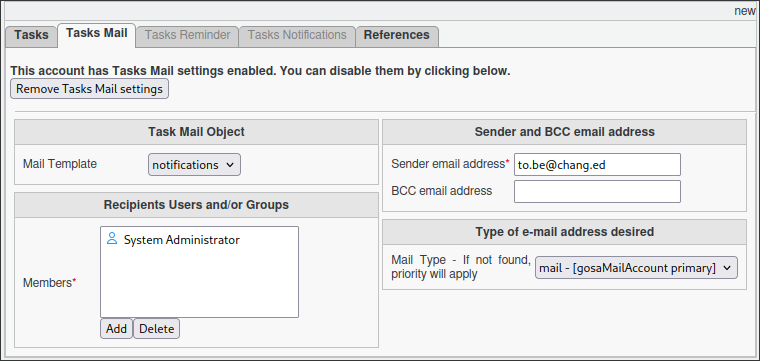
Go to the Tasks Mail tab.
Select the mail template you wish to use. (It must be pre-created).
Assign members to the task. This can be:
A simple group.
A dynamic group, offering flexibility for user management.
Select the sender email address and any BCC you wish to add.
The attribute defining where the email address is located.
Note
The default “Primary Address” from Mail plugin is being used by default.
If selected members have no e-mails configured for the attribute type selected, e-mails won’t be received.
Task Execution
For your configured task to be executed, you need to configure your fusiondirectory-orchestrator-client
See Mail Task Execution. for more information.
Summary
The Mail Task, when configured as described, will:
Run daily (or according to your configured schedule).
Send the email to targeted users individually.