Configuration
SupAnn standard (2020) documentation can be found here.
Additionally, the SupAnn standard specifies how to fill the cn attribute: SupAnn CN Attribute Documentation.
You can modify how FusionDirectory renders the CN attribute by adjusting the CN Pattern in the configuration backend.
For more details, refer to People and group storage.
The default pattern is:
%t[fr_FR]|sn% %t[fr_FR]|givenName%
This pattern determines how the cn attribute is structured within FusionDirectory.
Configure SupAnn Options
Click on the Configuration icon on the FusionDirectory main page.

Navigate to the SupAnn tab.
Click the Edit button at the bottom right.

The SupAnn configuration menu will appear:
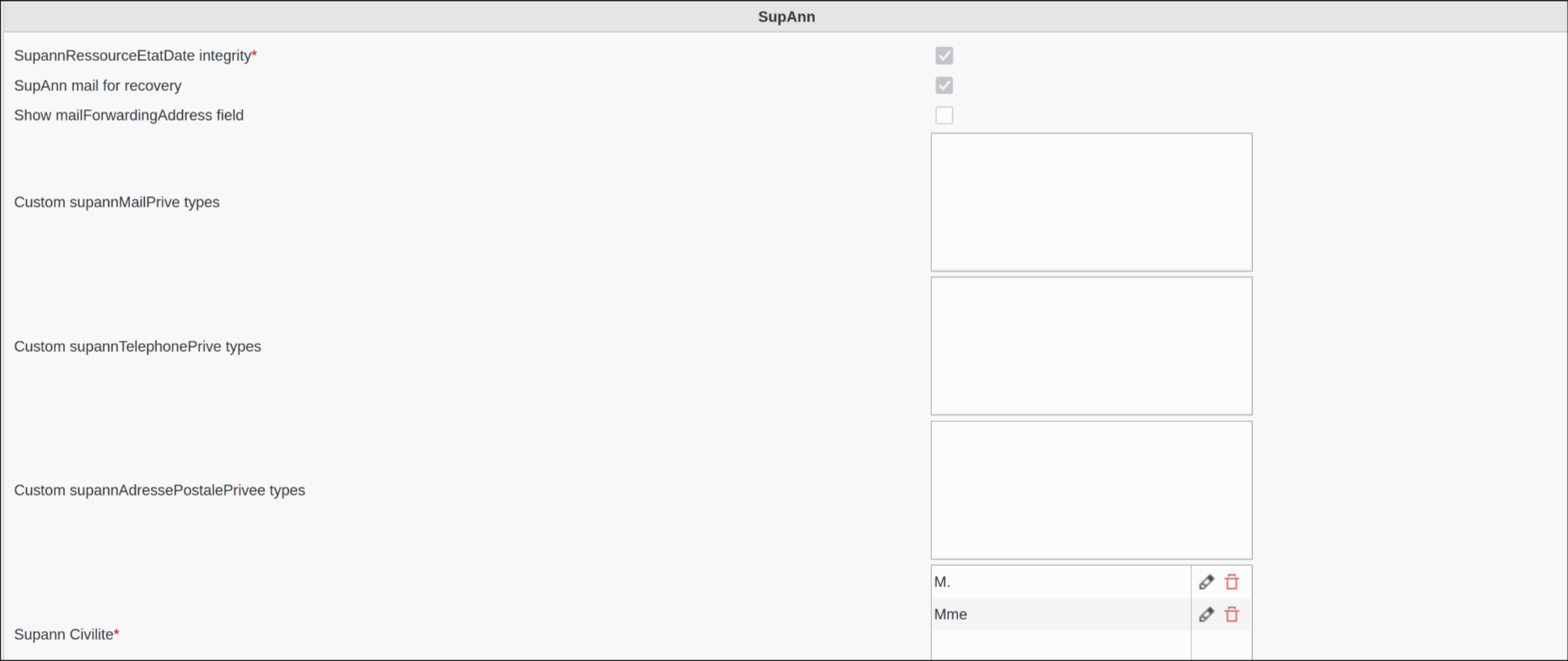
SupannRessourceEtatDate integrity: Controls validation of resource state data (required). When enabled (default), FusionDirectory enforces strict validation ensuring that all resources, states, and substates referenced in user accounts exist in the system configuration. When disabled, allows more flexible configurations where resources might not be pre-defined - useful during migration phases or when managing legacy data where some resources may be temporarily undefined.
SupAnn Mail for Recovery: Enables password recovery using email addresses from the personal mail field in a SupAnn account.
Show mailForwardingAddress Field: Displays the mailForwardingAddress attribute, making it available and editable in individual user configurations.
Custom supannMailPrivee Types: Allows you to define a Type and a Label for private email addresses, following SupAnn guidelines.
Custom supannTelephonePrive Types: Enables defining a Type and a Label for private phone numbers, in accordance with SupAnn standards.
Custom supannAdressePostalePrivee Types: Permits the definition of a Type and a Label for private postal addresses, ensuring compliance with SupAnn guidelines.
SupAnn Civilité: Expands available titles beyond “M.” and “Mme.” to provide greater inclusivity, following SupAnn recommendations.
Configure SupAnn Resources
Overview of Supann Resources configuration section
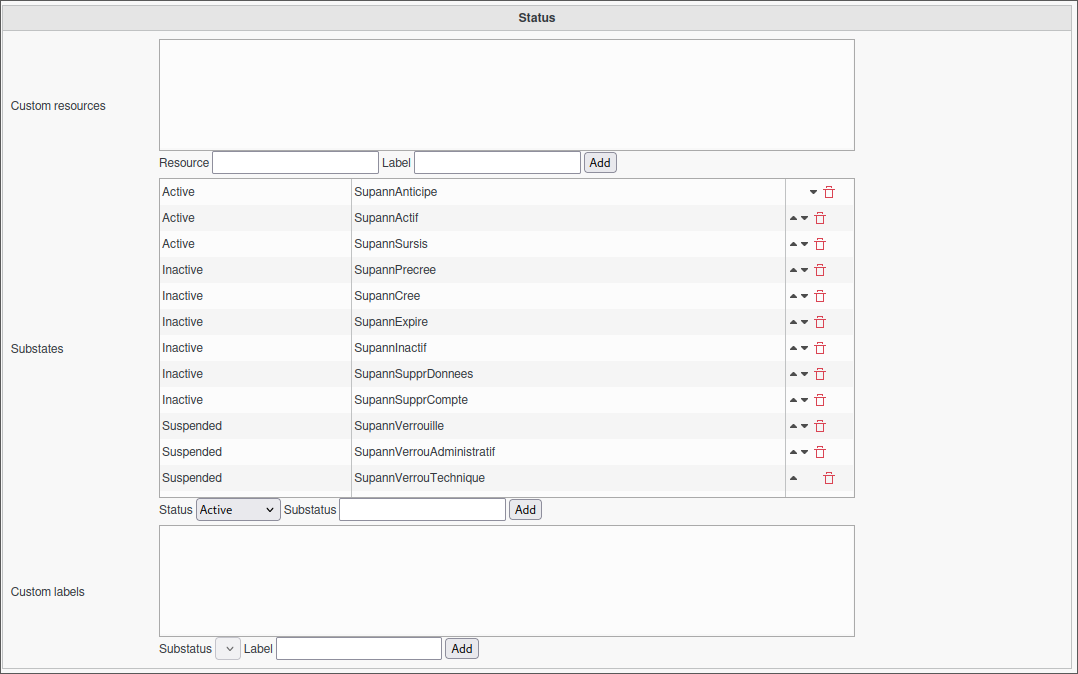
- In order to configure a new resource:
Fill in the appropriate fields as shown below.
Click Add.

Substates: Specifies the allowed substates for an account. There are three types:
Active
Inactive
Suspended
Custom Labels: Defines labels for custom substates.
Example: Adding a “Lost” Substate
To add the substate Perdu (Lost) under the “Library” resource:

Once all settings are configured, click OK at the bottom right.
Configure SupAnn Multiservice Card
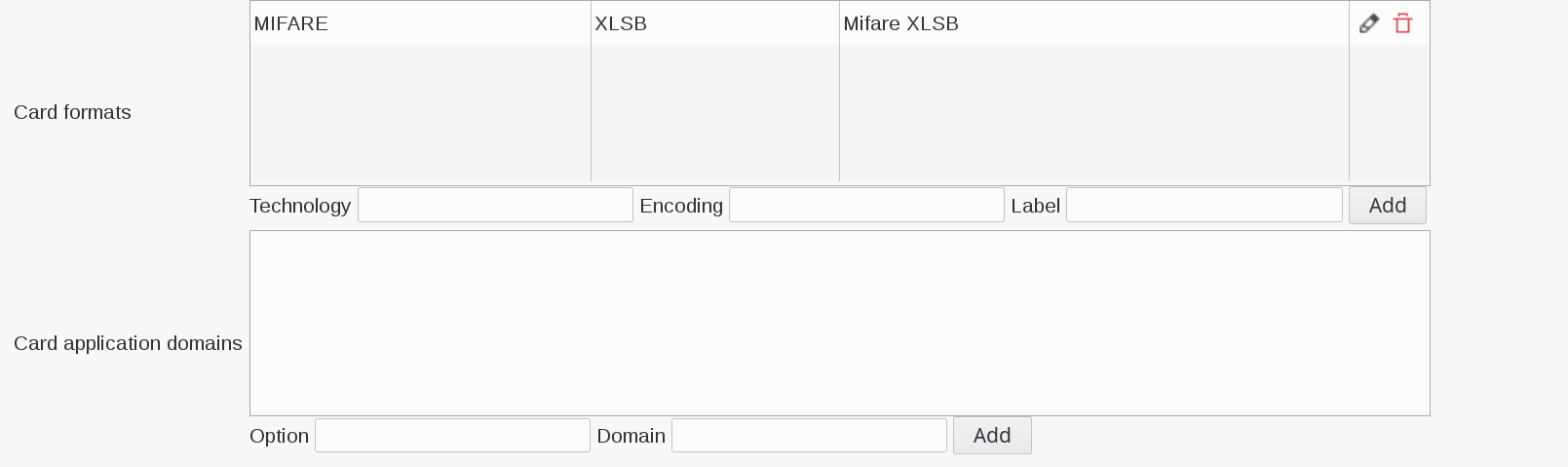
The Multiservice Card settings allow configuration of various card-related parameters.
Overview:
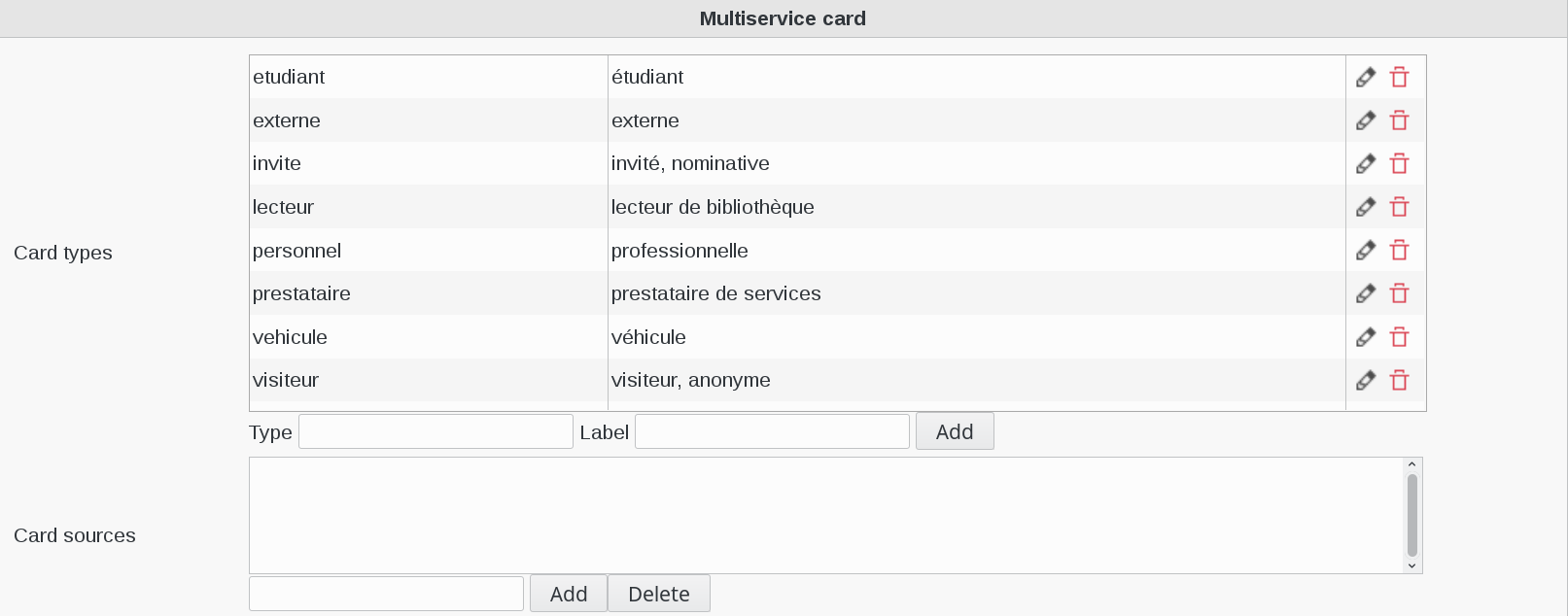
Configuration Options:
Card Types: Defines available card types and their labels. Prefix non-standard types with {ORIGIN}.
Card Sources: Specifies possible sources for multiservice cards using the format system@domain.
Card Formats: Lists allowed formats for multiservice cards.
Card Application Domains: Defines the domains in which card applications are valid.
Configure SupAnn Consent
The following configuration allows you to define consent objects and consent types within SupAnn.
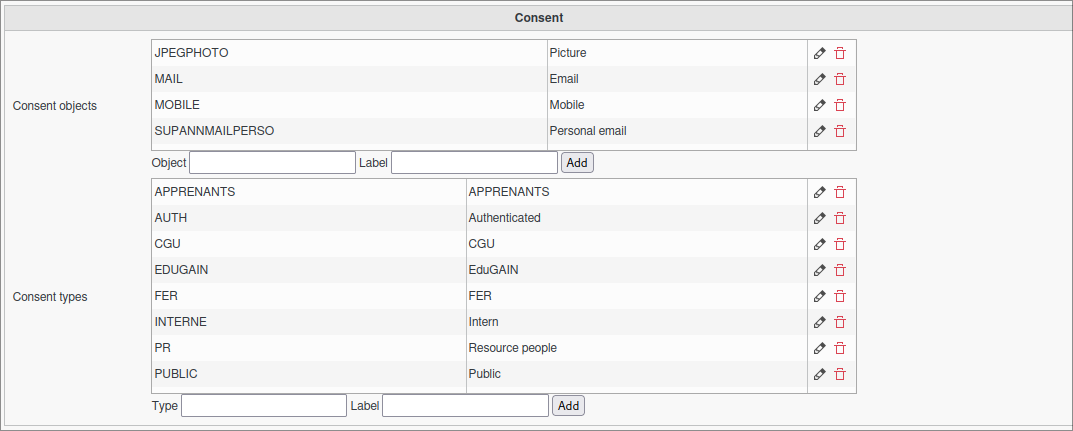
Steps to Configure Consent:
Consent Object: Add a new Object such as “PNGPHOTO” and specify its related Label. Click “Add”.
Consent Types: Add a Type with its corresponding Label as shown in the example. Click “Add”.
💡 Important: Click “Apply” or “OK” at the bottom right of the page to validate all new entries.
Configure SupAnn Features
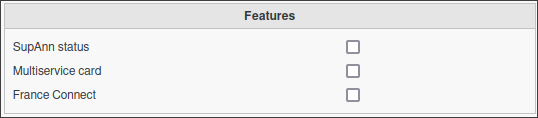
The Important Features panel allows activation or deactivation of specific features on the individual user configuration page.
Default Enabled Features :
SupAnn Status: Assigns a designated status to accounts for linked resources.
Multiservice Card: Ensures seamless card integration.
FranceConnect: Facilitates authentication via FranceConnect.
You may enable or disable these SupAnn features based on your requirements.