Life Cycle task
The Life Cycle task automates the management of user account states and resource validity based on SupannΕtatRessource attributes. It allows for modifying resource states, extending their validity, or triggering account closure based on predefined conditions and expiration dates.
Note
This task requires the FusionDirectory Orchestrator and the orchestrator-client to be configured for execution.
Task Setup
Creating the Task
Navigate to the Tasks section within FusionDirectory.
Create a new task and define its Name, Schedule (e.g., daily), and Repetition Interval.
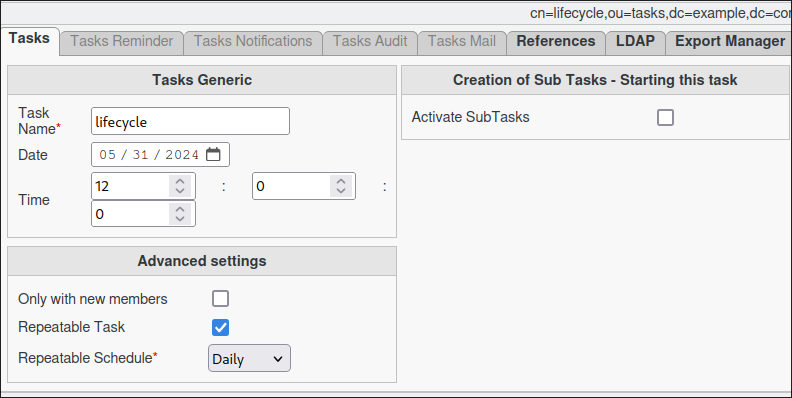
Configuring Life Cycle Task
The core configuration happens in the Tasks Life Cycle tab. You define conditions under which a user’s Supann resources are modified.
There are two main aspects to configure:
Current resources details: Defines the resource(s) to monitor for expiration.
Future resources details: Defines how a target resource should be modified once the “Current” condition is met.
Method 1: Using Specific Resource Names
This method monitors a specific, named Supann resource for expiration and updates another (or the same) specific, named resource.
- In the Current resources details section:
Resource: Select the specific Supann resource name to monitor (e.g.,
{MAIL}).State: Select the state of this resource that indicates it’s the one to monitor (e.g.,
Afor Active).Sub-state (Optional): Further refine the monitored resource by its sub-state.
- In the Future resources details section:
Resource: Select the specific Supann resource name that will be modified. This resource must already exist on the user.
State: Choose the new state to assign to this target resource.
Sub-state (Optional): Choose the new sub-state.
Extra days to add: Define how many days to add to the target resource’s new end date. The calculation uses the target resource’s original end date as the new start date.
Assign the relevant members (users/groups) to this task.
Note
When Sub-state is set to “None”, it means that any “Resources” and “States” matching the definition—regardless of their “Sub-state”—will be considered a match. In this case, the “Sub-state” is ignored entirely; whether it is set or not has no effect on the matching logic.

Method 2: Using Regex to Define Resources
This method allows monitoring or targeting resources based on a name pattern.
- In the Current resources details section:
Resource: Select
REGEX. This activates the “Regex Pattern Configuration” section.State: Define the state to monitor in conjunction with the regex pattern.
Sub-state (Optional): Define the sub-state.
- In the Regex Pattern Configuration section:
- Regex Pattern: Enter the regular expression to match against the names of the user’s Supann resources (the part within
{}, e.g., “COMPTE”, “MAIL”). A single asterisk
*will be treated as.*(match any character sequence), effectively matching all resource names.Example:
^MAIL.*matches resource names starting with “MAIL”.
- Regex Pattern: Enter the regular expression to match against the names of the user’s Supann resources (the part within
- In the Future resources details section:
- Resource: You can select a specific resource name or
REGEX. If
REGEXis selected here, the same “Regex Pattern” from the “Regex Pattern Configuration” section will be used to identify target resources.If a specific name is selected, that named resource will be targeted (it must exist on the user).
- Resource: You can select a specific resource name or
State, Sub-state, Extra days to add: Configure as in Method 1.
Assign the relevant members.

Note
When using REGEX in “Current resources details”, if any resource matching the pattern and state/sub-state is found to be expired, the user becomes eligible for the “Future” update.
Note
You can assign members using static groups or dynamic groups for flexible targeting.
Note
You cannot use posix groups with this task
Resource State Modification Behavior
The task processes users in two main phases for resource state modifications (this is separate from Automatic Account Closure):
Eligibility Check: For each assigned user, the task checks if any of their Supann resources meet the expiration criteria defined by the Current resources details (and Regex Pattern if “Current Resource” is
REGEX). A resource is considered eligible if its end date has passed. If no such expired monitored resource is found, no further state modification action is taken for that user.Update Execution: If an eligible expired resource is found, the task determines which existing user resource(s) to update based on the Future resources details. The name of the target resource is always preserved.
Scenario A: Monitored Resource = Static Name, Target Resource = Static Name
Trigger: The specific static resource in “Current resources details” is expired.
Action: Targets the existing user resource matching the name in “Future resources details”.
Update: If found and has a valid original end date, this target resource’s state, sub-state, and dates are updated. Its original end date becomes the new start date, and “Extra days” are added to calculate the new end date.
Scenario B: Monitored Resource = Regex Pattern, Target Resource = Static Name
Trigger: Any user resource matching the “Current” Regex Pattern and state/sub-state is expired.
Action: Targets the existing user resource matching the name in “Future resources details”.
Update: Same as Scenario A.
Scenario C: Monitored Resource = Static Name, Target Resource = Regex Pattern
Trigger: The specific static resource in “Current resources details” is expired.
Action: Targets all existing user resources matching the “Future” Regex Pattern (from “Regex Pattern Configuration”).
Update: Each found resource with a valid original end date is updated as in Scenario A.
Scenario D: Monitored Resource = Regex Pattern, Target Resource = Regex Pattern
Trigger & Action: The task identifies user resources that:
Match the Regex Pattern by name, AND
Match the state/sub-state in “Current resources details”, AND
Are expired.
Update: Each such identified resource is updated as in Scenario A, preserving its name.
Note
Example (Illustrating Scenario A for State Modification):
A user has an expired {MAIL} resource (e.g., {MAIL}X:Y:startDate:20241231).
Your task is configured for state modification (Account Closure disabled) with:
Current resources details: Resource=``MAIL``, State=``X``, Sub-state=``Y``
Future resources details: Resource=``COMPTE``, State=``A``, Sub-state=``B``, Extra days=``30``
The task will:
Detect the expired
{MAIL}resource matching state X, sub-state Y.Find the existing
{COMPTE}resource on the user (e.g.,{COMPTE}Z:W:otherStartDate:20250115).If
{COMPTE}exists and its end date20250115is valid: - The{COMPTE}resource’s new state becomesA, sub-state becomesB. - Its new start date becomes20250115(its original end date). - Its new end date becomes20250115+ 30 days. The resource string would change from{COMPTE}Z:W:otherStartDate:20250115to{COMPTE}A:B:20250115:newEndDate.
Tip
For predictable lifecycle management of a single resource type, it’s often best to have the “Current Resource” and “Future Resource” refer to the same resource name (e.g., monitor {COMPTE} to update {COMPTE}, or use REGEX for “XYZ” in both Current and Future if targeting by pattern). The flexibility to use different names is for specific advanced scenarios.
Warning
The resource(s) targeted for modification must already exist on the user and must have a valid end date. This original end date is critical as it becomes the new start date for the updated resource.
The task only modifies the state, sub-state, and dates of targeted existing resource(s). The name of the targeted resource itself is never changed by this state modification process.
If a targeted resource is not found (Scenarios A & B) or lacks a valid end date, the update for that specific resource is skipped, and an error may be logged.
Automatic AccountClosure
This feature allows the Life Cycle task to automatically lock a user’s main account (typically {COMPTE}) when other specified services or resources are no longer active. This is distinct from the resource state modification behavior described above.
Enabling the Feature:
Navigate to the Tasks Life Cycle tab.
Go to the Automatic Account Closure section.
Check the Enable Account Closure box.

Configuration:
- When “Enable Account Closure” is ticked, the task uses the settings from:
Current resources details (Resource, State, Sub-state)
Regex Pattern Configuration (if “Resource” in “Current resources details” is set to
REGEX)
These settings define which of the user’s Supann resources are monitored to determine if the account closure should proceed.
The Future resources details section is generally ignored or disabled by the UI when “Enable Account Closure” is active, as the action is specifically to lock the
{COMPTE}resource.
Behavior:
The task identifies all user resources matching the criteria in “Current resources details” (and “Regex Pattern” if applicable).
It then checks if any of these monitored resources are in an Active (A) state. Crucially, the
{COMPTE}resource itself is excluded from this “active check.”If none of the monitored resources (excluding ``{COMPTE}``) are found to be Active (A), the system proceeds to modify the user’s
{COMPTE}resource.The
{COMPTE}resource is typically updated as follows:State:
S(Suspended)Sub-state:
SupannVerrouAdministratifStart Date: Current date
End Date: None
Example resulting string:
{COMPTE}S:SupannVerrouAdministratif:YYYYMMDD:
Use Case Example:
Goal: Lock a user’s main account if all resources are no longer Active.
Configuration:
Enable “Enable Account Closure”.
In “Current resources details”, set “Resource” to
REGEX.In “Regex Pattern Configuration”, set “Regex Pattern” to
*.
- Execution:
The task checks the user’s resources.
If none of the user’s resources are in state
A, the user’s{COMPTE}resource will be updated to a locked state.

Task Execution
For your configured task to be executed by the FusionDirectory Orchestrator, ensure the orchestrator-client is correctly set up and scheduled (e.g., via cron) on a machine that can communicate with your FusionDirectory instance.
See Life Cycle Task Execution for more detailed client setup information. (Assuming this label exists elsewhere)
Summary
The Life Cycle Task provides powerful automation for:
Modifying Supann resource states for users based on expiration dates, either by targeting specific resources or using regex patterns.
Automatically locking user accounts (via the “Enable Account Closure” option) when associated services are no longer active.
This helps maintain accurate user entitlements and secure accounts by managing their lifecycle stages effectively.